
How to export bookmarks from Chrome: Edge, Safari, Firefox

Bookmarks allow you to access your favourite webpages quickly and easily. Google Chrome allows you to back up your bookmarks so that they are not only accessible on your computer, but also on other devices signed into your account. In this article we'll show you how to back up your Google Chrome bookmarks and transfer them to other browsers.
How to export your bookmarks from Google Chrome?
Open Google Chrome, and click the Customize and Control Google Chrome menu > Bookmarks.
Next, select Bookmarks manager, or press [CTRL] + [Shift] + [O] on your keyboard.
Now, click the Organize menu > Export bookmarks to HTML file: 
Name the file and choose a location to save it. You can send this bookmark file to whoever you want. The person who receives it can then import your bookmarks in their browser.
How to export bookmarks from Chrome to Edge?
Open Microsoft Edge, and go to the Favourites icon in the top right corner. In the drop down menu, select Import Favourites. Check the box next to Chrome to choose that browser to import your Chrome favourites to Edge.
How to export bookmarks from Chrome to Safari?
Open Safari, click on File and select Import From. Locate the bookmark file you created in Chrome called Bookmarks HTML file and click Open.

How to export bookmarks from Chrome to Firefox?
Open Firefox, click on Bookmarks and select Show all Bookmarks. In the catalog window, click Import and backup and select Import bookmarks from HTML. Select the bookmark file you previously created with Chrome and click Open.

How to import bookmarks from Google Chrome to Opera browser?
Open your Google Chrome browser.
Click on Bookmarks and scroll down to Bookmarks Manager.
Then, click on the three dots icon (Organize) in the upper right corner.
Select Export Bookmarks option.
Export the bookmarks and save the bookmarks.html file to your computer.
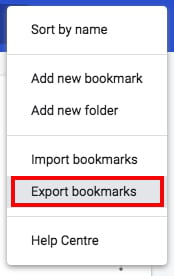
Next, open your Opera browser and click on Menu > Bookmarks > Manage Bookmarks.
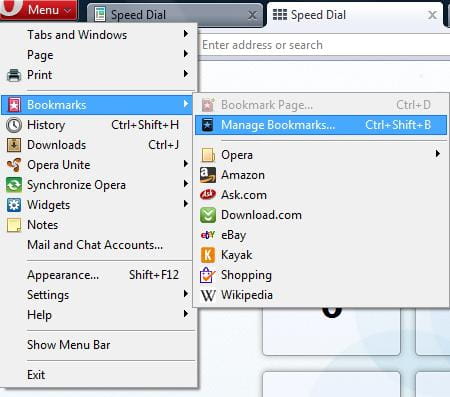
Click on File > Import bookmarks and browse for the bookmarks.html file.
Finally, click on OK. You shall receive a message about the number of entries that have been imported.
How to export bookmarks from Chrome to Internet Explorer?
Open Internet Explorer and press the Alt key to display the menu bar. Click File and select Import and Export. Choose Import from a file and click Next. Choose what you want to import (favourites) and click Next. Click Browse, find the Chrome bookmarks file and click Open.
How to import your bookmarks to your Android device?
Sign in to Google Chrome on your PC, click on the Chrome menu and select Settings. In the Access section, click Advanced synchronisation settings. From the drop-down menu, select Choose what will be synchronised, check the Bookmarks box and click OK. Then open Google Chrome on your Android device, click on the Menu ( three vertical dots) and choose Bookmarks. The list of bookmarks on your PC will now appear on your mobile.