
How to factory reset Dell laptop: without password, BIOS
If your Dell laptop starts to malfunction, one of the solutions is to restore it to its factory settings. Depending on the model you own, the procedure may vary slightly.
What is a factory reset?
A factory reset will restore your laptop to its out-of-box state, this means that all stored data and previously saved settings will be removed. Before beginning we highly recommend backing up any personal files before moving forward with the reset. You can create a backup with an external hard drive, or with cloud storage.
How to perform a factory reset without a password?
Here are the steps to follow for Windows 7:
- Note that you can only reset to factory settings your Dell under Windows 7 after creating a Live CD. You can then remove the admin password.
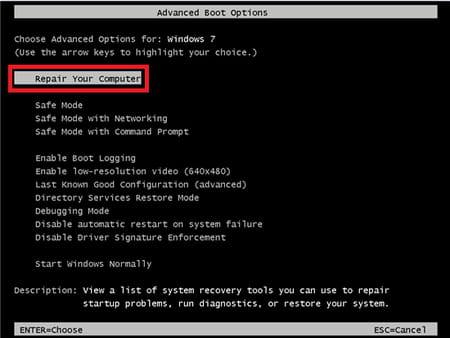
- Turn on your computer and start pressing F8 until you get to the Advanced Boot Options.
- Note: You must press F8 before the Windows logo appears on the screen. If you press F8 after the Windows logo appears, the Advanced Boot Options menu will not appear on the screen. If you do not see the Advanced Boot Options menu, restart the computer, and then repeat this step until you see the menu on the screen.
- From there, select Repair your computer by pressing Enter.
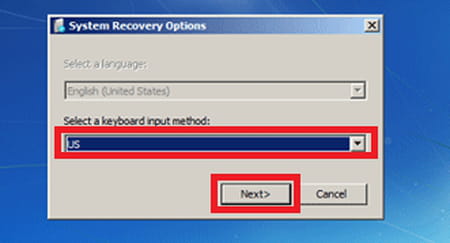
- From there, select the according keyboard input method.
- Next, you will have to enter your username and password, however, because you've already removed the password with your Live CD, then just leave the dedicated space blank and confirm.
- From there, select one of the following options (depending on the model of your computer): Dell Datasafe Restore and Emergency Backup, Dell Factory Image Restore, or Dell Backup and Recovery Managers. You can then follow the onscreen instructions.
Here are the steps to follow for Windows 10 (and 8):
- When the login screen appears, click on the Power button. Next, while holding the Shift key, click Restart.
- Next, select Troubleshoot.
- From there, select Reset your PC.
- Click Next.
- A Reset your PC screen will appear. Choose Just remove my files and then select Reset.
How to factory reset a computer with Windows 11?
- To perform a factory reset on Windows 11, go to Start > Settings > System > Recovery > Reset PC.
- You will then be offered two options. You can either select "Keep my files" or "Remove everything". If you choose to remove everything, then all of your personal data will be removed.
- You can then choose between Cloud download and Local reinstall. A cloud download will download the Windows installation file from the Windows server. If you choose Local reinstall, your computer will reinstall Windows using the files that currently on your PC. This is the fastest option, however if you are reinstalling Windows because of an issue, it is best to use the Cloud download option.
- Once you have decided on your preferred reinstallation option. You will be prompted to continue to Additional settings and then you have the option to Change settings.
- Select Reset to begin the process. This is the point of no return. You can no longer stop the reset process.
How to factory reset a Dell on Windows 10?
- Open the Control Panel.
- Search for Recovery.
- From there, select Open System Restore and then Next.
- Select the restore point and confirm by selecting Next > Finish.
If you don't remember your password and can't access your account, refer to the first section of the present article.
How to factory reset a Dell on Windows 8?
You can follow the same instructions as for Windows 10. In the previous section, you will find how to do so by accessing your account. In the first section, you will find the solution to this issue, if you don't remember your password.
How to factory reset a Dell on Windows 7?
- Click Start > Control Panel.
- Select System and Security, then System.
- Select System protection (under Control panel home).
- You can then choose between the Recommended Restore and a different restore point.
- Confirm by selecting Next.
- Select Next again, then Finish.
- Finally, click Yes to start the process.
If you don't remember your password and can't access your account, refer to the first section of the present article.
How to factory reset a Dell on Windows XP without password?
You can follow the same instructions as for Windows 7 from the first section of the article.
How to factory reset a Dell from startup?
- Click Start and search for Reset.
- Click Reset this PC (System Setting).
- Next, select Restart now (under Advanced Startup).
- From Choose an option screen select Troubleshoot.
- After that, choose Factory Image Restore.
- You can then complete by following the on-screen instructions.
How to factory reset a Dell with BIOS?
- Turn off your computer and then turn it back on.
- Press F2 (this button may vary according to models) to enter the BIOS.
- Next, press Alt-F.
- Restart your laptop.
How to factory reset a Dell with a keyboard?
Note that you can restart your Dell with a keyboard but you can't restart it to factory settings. If you are simply looking for a way to restart your laptop then:
- Press Ctrl + Alt + Del at the same time.
- Click on the Power icon.
- Select Restart.
If your keyboard isn't working and you are looking for a way to reset your Dell to factory settings, then you should enable the virtual keyboard and follow the instructions from this article, according to your case.
How to factory reset Dell Inspiron?
Windows 10:
If you are running Windows 10, follow these steps to restore your Dell Inspiron to Factory Settings.
- Click the Start button (the Windows 10 icon), and type Reset
- Select Reset this PC in the System Settings
- Under the Advanced Startup, select Restart now
- In the Choose an option screen, select Troubleshoot.
- Select Factory Image Restore.
- Follow the instructions that are displayed on the screen to finish the reset process. This could take a while and your computer will restart.
Windows XP:
- Turn on your computer and then press and hold the CTRL + F11 keys until the Dell logo appears on your screen.
- Next, click the Restore button, followed by Enter. A caution message will appear to notify you about data loss incurred with the factory reset. Click on the Confirm button to proceed.
- The Progress window will now appear. Once the recovery process has begun, the Dell PC restore will usually take between 8-19 minutes to complete. Once finished, a message that reads, The system recovery process was successful will appear on your screen.
- Click the Finish button, or press any key to highlight the Finish option and press Enter.
Your computer will then restart.
Windows Vista and 7:
- Turn on your computer and then press and hold the F8 key as soon as the Dell logo appears on your screen. This will take you to the advanced boot menu options. Select the Repair your computer option, and enter your administrative password (if needed).
- You'll be met with a list of options. Click on Dell Factory Image Restore, followed by Next. Then click the Yes checkbox next to the reformat hard drive and restore system software to factory condition option. Click Next again to begin the factory restore.
- Once the operation is complete, click on Finish to restart your computer.
Note that if neither option works, this may be an indication that your laptop's factory image defaults partition have vanished (i.e. become corrupt or have been deleted). In this case, you will have to reinstall your operating system with the DVD or CD shipped with your laptop.
How to factory reset Dell Chromebook?
And here we will show you how to factory reset a laptop Dell Chromebook (as well as any Chromebook that runs the Chrome Operating System and uses a Google account to connect to the internet). After the reset is completed, you should sign into the owner Google Account.
- Sign out of your Dell Chromebook.
- Press and hold Ctrl + Alt + Shift + r.
- Click on Restart.
- Select Powerwash, press Continue and follow the instructions signing in with your Google Account.