
Disable foreign keyboard: on Windows, Mac, Chromebook

Here's a quick tutorial on how to avoid accidentally switching your language input on your keyboard on Windows, Mac, and Chromebook.
How to turn off international keyboard on Windows?
There are two ways to permanently deactivate the foreign language keyboards:
-
Right-click on your keyboard icon, and then left-click on Settings.
-
Select the Advanced Key Settings tab, and find the Change Key Sequence button. Then, select the not assigned option.
-
Click OK to save your settings.
You may also change your settings through the Control Panel if you cannot locate the keyboard icon:
-
Head to your Control Panel and select Regional and Language.
-
Select the Keyboards and Languages tab, and click the button that says Change Keyboards.
-
You will be taken to the language settings options described above. Follow the directions to deactivate the foreign keyboards.
You can also switch between keyboards if you like. To avoid the accidental activation of a foreign keyboard, your computer settings need to be changed so that a key sequence is not assigned or selected.
Go to your Control Panel and select the Regional and Languages icon.
Near the bottom right corner of your screen, you will see a keyboard icon. Left-click on this icon and select US keyboard. Note that this will turn off your foreign keyboard, but it will not prevent your computer from switching it on again.
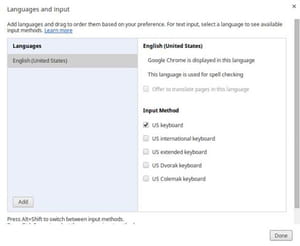
How to switch off foreign keyboard on Chromebook?
1) In the bottom right corner click on the status area and select Settings.
2) Scroll down to Device section and go to Keyboard Settings.
3) Click Change Language and Input Settings.
4) In the new dialog box uncheck international keyboard and leave only the one you need.
How to turn off the international keyboard on Mac?
1) Go to System Preferences > Language & Text.
2) Click the Input Sources tab. Then, scroll down the list of input methods, enable U.S., and disable the U.S. International keyboard.