
TWAIN driver: scanner, Windows 10, meaning, download
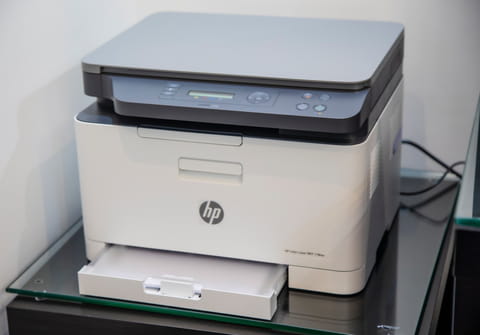
TWAIN is a useful software that serves as a bridge between the scanner hardware and graphic software. With it, you can have all your scanned images in a graphic editor within several minutes. In this article, we will explain how to install and use a TWAIN driver.
What is the TWAIN driver?
TWAIN is a handy application designed to automatically scan the images into different graphic programs such as Photoshop, Illustrator, InDesign and many more.
With TWAIN driver installed you can have your image in a program to work with it in one click without having to save it first and wait for the upload. Often the TWAIN driver software comes with scanner hardware.
If for some reasons you don’t have an installation CD, you can also download the software on the official website of your scanner manufacturer or try similar built-in programs, such as ImageKit for Mac OS or built-in WIA (Windows Image Acquisition) for Windows OS. You can also use third-party scanning software such as VueScan or SilverFast
How to Install TWAIN Driver?
To install the TWAIN driver first you will need to verify that your scanner is well installed on your PC. To do so, go to Start > Settings > Control Panel and double-click on the System. If the model of your scanner appears here, it means that it is well connected.
Insert the CD with TWAIN driver into the CD-ROM of your computer and follow the installation instructions. The process will take up to 10 minutes and after this, you can restart your PC and use your scanner as well as TWAIN driver.
How to use TWAIN Driver Windows 10?
If you successfully installed the TWAIN Driver you can start using it.
Load the original document into your scanner and open Adobe Photoshop (or any other graphic program compatible with TWAIN) and go to File > Import > TWAIN driver.
In the new prompt window select the device (your scanner) and click on Connect, then perform scanning. When the document will be scanned it will automatically appear in your Photoshop and you can work with it.