
Mouse clicking on its own: Mac, virus, Windows 10
The mouse or touch pad is an essential piece of hardware that is used to navigate folders, launch programs and access a computer's right or left-click options. Sometimes, users may face issues where the mouse or touch pad starts moving around erratically, and merely pointing the cursor on an icon causes the program to launch automatically. This issue is also known as an automatic click issue.
Is a mouse automatically clicking a sign of a virus?
Fortunately, no. The most common cause of this problem is an outdated driver. Luckily, updating the old driver is a quick fix that should get your mouse working correctly again. It could also be related to some dust or other debris stuck inside the mouse.
How to fix automatic clicking issues on mouse Windows?
- Right-click on My Computer on your desktop. In the window that appears, do a left-click on the Hardware tab. Then left-click on the Device Manager option.
- Scroll down the list of Device items and left-click on the + sign located to the left of Mice and other pointing devices.
- Under the Mice and other pointing devices heading, you should see a list of all drivers currently in use for your active touchpad and computer mouses. Right-click on the driver name and then left-click Update driver to update it.
- Follow the update instructions to update your driver, and then reboot your computer to finish the installation.
How to fix automatic clicking on Mac?
- If you are having a similar problem on a Mac where your trackpad is moving the cursor and clicking when you have a mouse attached, you can temporarily disable the trackpad.
- To do so go to System Preferences and then to the Accessibility menu. Once here go down to the Mouse and Trackpad settings and select Ignore built-in trackpad when mouse or wireless trackpad is present.
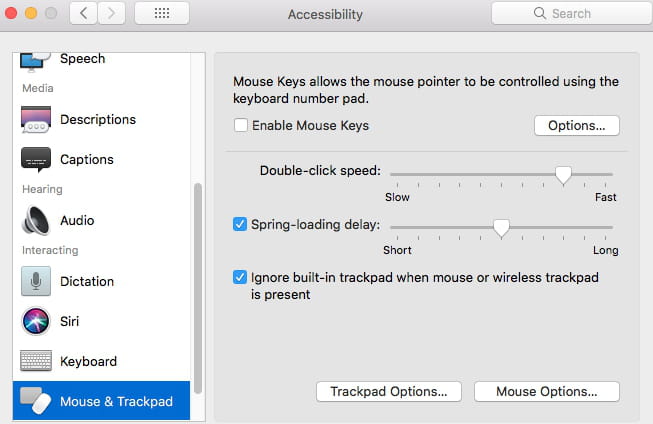
- You will now be able to use your mouse without any unwanted interference from the trackpad.
Any more hardware questions? Check out our forum!
Subject
Replies