
Download and install Windows 8.1: from ISO, installer
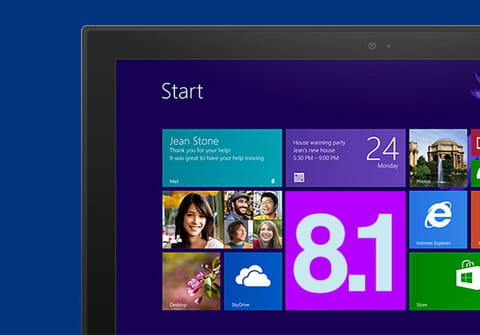
Windows 8 is compatible with all PCs running under Vista and in this article we will give you step-by-step instructions on how to install Microsoft's Windows 8 operating system on your PC.
What are the hardware requirements?
Here are the minimum hardware specifications required:
- Processor: 1 GHz or higher
- Memory: 1 GB or more for 32-bit versions, 2GB or more for the 64-bit version;
- Disk space: 16 GB or more for 32-bit, 20 GB or more for 64-bit version;
- Graphics Card: DirectX 9 compatible;
- Additionally: a trackpad or multitouch screen/tablet to use touch interface.
Note: PCs before 2005 may have a processor that does not support SSE2, PAE and NX bit functions, required by Windows 8.
How to download and install Windows 8 via the installer?
You can use the installer version of Windows 8 Consumer Preview or download an ISO image from the Microsoft website.
-
Go to this page, select Windows 8.1 from the drop-down menu and finally, click on Run.
- The application then determines whether your PC can run Windows 8 Consumer Preview and provides the appropriate download.
- The installation program also offers a compatibility report and updated support features.
- You can also visit the online compatibility center if some items are not 100% compatible.
- A registration key is provided on the download page.
- Note it carefully or copy/paste it into the document (in Notepad for example).
- You will be asked for it later. Click Next to start the download of Windows 8.
- Two versions are available: 32-bit and 64-bit.
- The downloaded version will be the same type as the operating system you are running.
- Once the installer is downloaded, a dialog box prompts you to begin the installation.
- Select Install Now to put Windows 8 on the active partition or install it on another.
- Then click Next and follow the instructions given by the wizard.
How to download and install Windows 8 using the ISO image?
- Visit this page and download the version you want to install.
- Once the ISO image is downloaded, burn it to a DVD.
- For your information, if the download was performed on a Windows 7, double-click on the ISO file to start the burning procedure.
- Insert the DVD containing the ISO image in the drive and restart the computer.
- Press a key when prompted to boot from the DVD.
- Then follow the on-screen instructions to install Windows on the partition of your choice.
do you have more questions about windows 8? check out our forum!
Subject
Replies