
How to resize partition Linux: Gparted, command line

Operating systems, such as Linux, provides partitioning software to resize partitions without any data loss. It's possible to resize a partition using Gparted in an easy and a convenient way. Gparted partitioning software is available for free download. To modify the partition with Gparted, it has to be downloaded and then burned into a blank CD.
This CD will be used as a bootable CD in order to resize the partition on Linux. Follow these easy instructions to resize a partition using Gparted on Linux without losing any data. The process may take some time to complete. So, If you have a partition and you want to enlarge or reduce it without losing data you might find Gparted does what you want.
To use Gparted on Linux:
- Download GParted.
-
Download InfraRecorder, a program to burn the ISO image of GParted on a blank CD.
-
Restart the computer introducing the CD into the drive (please make sure that your BIOS is properly configured to boot from CD-ROM: change the boot sequence BIOS)
-
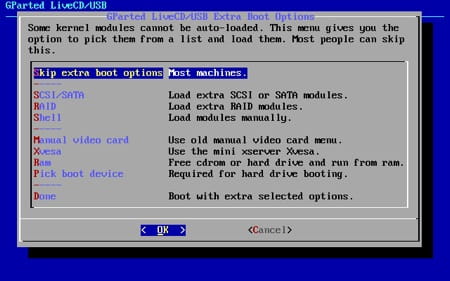
When prompted, choose ignore the boot options unless you want to declare a specific device:
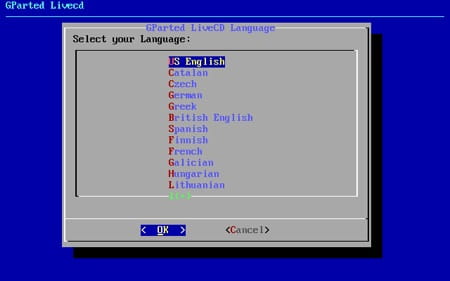
- Choose the language:
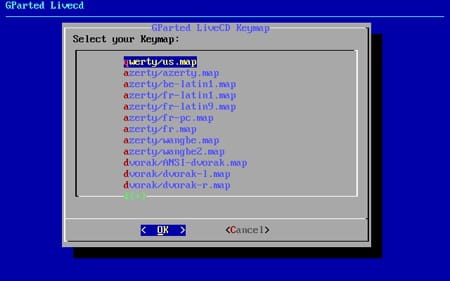
- Choose the keymap:
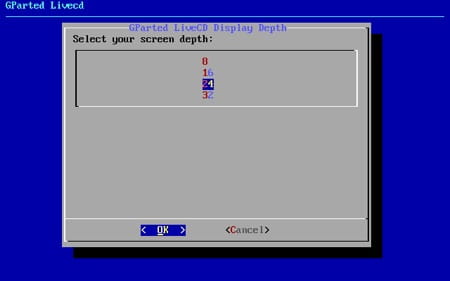
- Choose the screen depth:
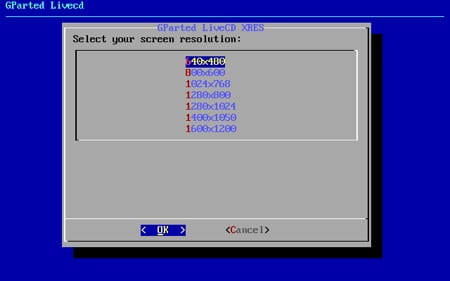
- Choose the resolution:
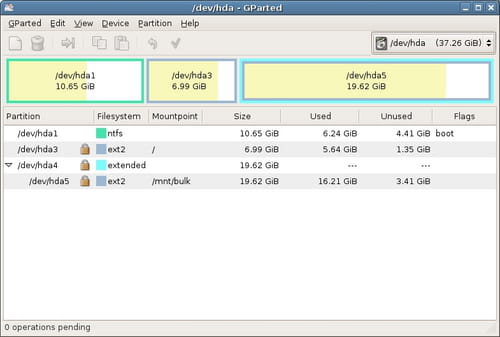
- Gparted should then launch and display a screen showing disks and partitions:
-
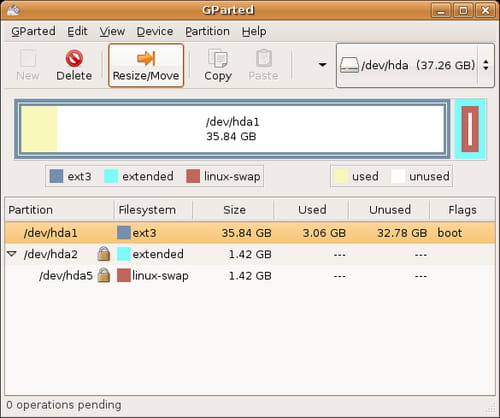
Click to repartition the disk (/dev/hda1 is usually the first IDE drive, /dev/hda2 for the second. /Dev/sda1 is the first SCSI or Serial-ATA, /dev/sda2 in the second, etc.)
- Click "Resize":
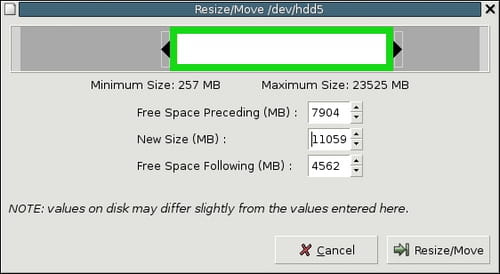
- A window then prompts you to resize the partition:
Then click "Apply."
Warning: After this stage, it will be impossible to undo.