
How to improve uTorrent download speed?

Despite being one of the most used torrent programs with users across the world, uTorrent is not without its flaws and is sometimes not as efficient as we would like. Fortunately, a few minor adjustments to the program's settings should suffice to get your downloads up to speed.
How to download the torrent with the most seeders?
When searching for torrents, there are normally alternatives to download the same content. It is best to choose the one with the most seeds, as this will directly influence the download speed.
How to start uTorrent automatically?
If you disabled this option during the installation process, re-enable it by going to Options> Preferences> General and checking the Start uTorrent at Windows startup checkbox. Then click Apply and OK. Launching the program automatically when Windows starts will allow you to gain positions in the virtual download queue, something especially useful if it is a file with few seeders .

How to give priority to downloads?
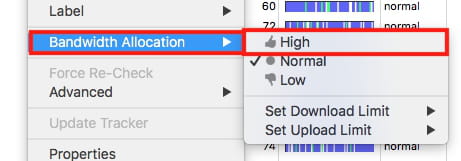
Do you have other programs open at the same time? Are you watching something on YouTube while the downloads continue in the background? Unfortunately these are "stealing" bandwidth from uTorrent and inadvertently slowing down your downloads. To avoid this, you just have to right-click on the torrent you want to download quickly and select Assign bandwidth> High.
How to reduce the number of simultaneous downloads?
In the same way that it is not recommended to distribute your bandwidth among many applications, neither is it recommended to distribute it among too many downloads. The best thing, in fact, is to download the torrents one by one. To do this, go to Options> Preferences> Queue and put 1 in the Maximum number of active torrents and Maximum number of downloads active . Close this window by clicking Apply and OK.
How to check that there are no speed limits?
If you have put the above tips into action and have still not noticed any changes, the program may have limited bandwidth without you knowing. For uTorrent to take advantage of the full speed of your Internet connection, go to Options> Preferences> Bandwidth and put 0 where it says Maximum download speed (kB / s) . Then, as always, Apply and OK.

How to change ports?
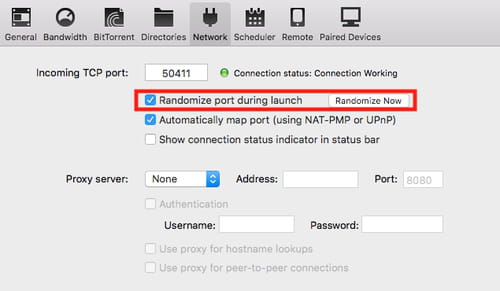
To avoid being blocked by your Internet provider, it is important to change the port for incoming connections that the program uses by default. Go to Options> Preferences> Connection and click on Random port (on some pages it is also recommended to use ports 45682 or 34914 specifically). Check the Toggle port with each start box, so you don't have to repeat this process every time you open the program. Before closing this window by clicking on Apply and OK.
How to prioritise a cable connection?
Are you still experiencing slow download speeds? It may be that problem is your Internet speed that you have. If it is not very fast, a good way to get the most out of it is to connect your PC to the internet with an ethernet cable instead of via Wi-Fi. If the router is too far away, consider getting a WiFi repeater.