
How to transfer files from PC to a Galaxy Tab?
If you use a Samsung Galaxy Tablet, you have probably already transferred some files such as books, images and movies from your computer to your tablet. In this article, you will find out how to transfer your files from a computer to the Samsung Galaxy Tab and what to do if it seems impossible.
How to transfer files from PC to a Galaxy Tab?
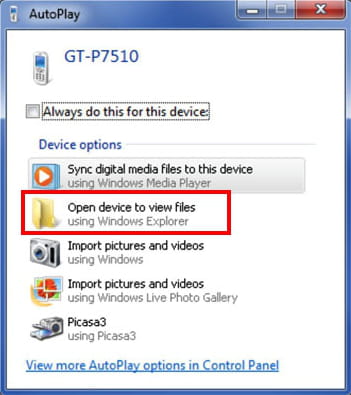
- Connect your Samsung Galaxy Tab to your computer using the USB cable. The AutoPlay</bold dialog box will appear.
- Choose the Open device to view files option.
- Find the files you’d like to transfer to your Samsung Galaxy Tab and drag them to your tablet folder.
- When the files are successfully copied to your Samsung Galaxy Tab folder, you can close all the windows and disconnect the USB cable.
What are other solutions?
Sometimes, you may be unable to transfer files from a PC to the Galaxy Tab due to hardware or software related problems. When there is a problem in transferring files from the PC to the Galaxy Tab, the hardware cable should be checked. If there is no problem with the cable but you are still unable to transfer the files from the PC to the Galaxy Tab, the USB settings of the Galaxy Tab will need to be configured properly. Here’s how to do it:
1) Disconnect your USB cable.
2) From the home screen of your tablet, go to Menu > Settings > Wireless & Networking > USB Settings.
3) Select Mass Storage.
4) Reconnect the tablet to your PC using the data cable and on the Galaxy Tab tap Mount.
5) Finally, you should be able to access the storage unit of the Tablet via Windows Explorer by following the instructions above.
Note: To disconnect your device, press the Turn off button.