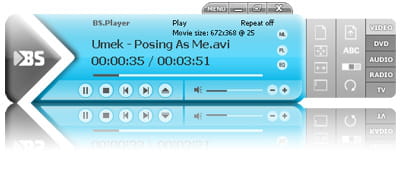
BSplayer is a free multimedia player which is widely used by millions of users. It supports many videos formats such as AVI, MP3, WMV, MPG, FLV, ASF, WAV and so much more! It has a very well designed interface and can be customized in your way! BSplayer has also subtitle support, it will automatically search for movies subtitles before playback and also lets you to custom your subtitles characteristics! This application doesn’t require too much CPU usage and works on all Windows Platforms!
Features:
Supports all videos file formats
Skins support
Displays subtitles for divx movies
Playlist
Available in 90 languages
Built-in equalizer
Command line
OGM files
S/PDIF output (AC3 files)
Remote Control
Built-in Radio and TV browser
Automatic codecs download
Constraints:
Upgrade to PRO for €19.90
Suggestions
- BSplayer
- [BSplayer] Change Skins » Tips : [BSplayer] Change Skins
To change the look of BSplayer:
Click on Menu > Options > Preferences > Skins
In the right pane, select the skin of your choice (from the given list).
Press OK to validate.
More skins available on this link:...
- [BSplayer] Change desktop icon » Tips : [BSplayer] Change desktop icon
BSplayer allows you to choose among several desktop/system tray icons or even make use of a custom one:
Click on Menu > Options > Preferences > General> File types
In the right pane, move the slider in the "File...
- [BSplayer] Always start videos in full-screen mode » Tips : [BSplayer] Always start videos in full-screen mode
To configure this settings under BSplayer:
Click on Menu > Options > Preferences > General> Video
In the right pane, check "Always start in full screen mode"
Press OK to validate.
- [BSplayer] Disable subtitles » Tips : [BSplayer] Disable subtitles
To disable subs under BSplayer:
Click on Menu > Options > Preferences > Subtitles
In the right pane (subtitle properties), check "Disable Subtitles".
Press OK to validate.
- [BSplayer] Add to context menu » Tips : [BSplayer] Add to context menu
In the case that options for BSplayer are missing from the context menu (right-click):
Click on Menu > Options > Preferences > General > File types
In the right pane, check "Enable Windows Explorer Context...